


The Shopware community chat is moving from Slack to Discord.
If you’re new to Discord, don’t worry. This post will guide you step by step:
What Discord is and how it differs from Slack
How our Shopware Community Discord works and how to navigate it
For a lot of people from the community, this means getting used to a new software that has different ways of doing the same things. There are new possibilities and some features you are used to will not be available anymore.
We already published a blog post about why we switch software, you can read all about that on the Shopware blog.
The purpose of this text is to guide you through the changes, and help you make yourself at home in Discord quicker.
A good start, aside from this article, is the official Beginners Guide to Discord.
Mental model shift
The most foundational change is not about features. Discord has a different approach to how communities are hosted, which diffuses into most other differences between Slack and Discord.
Slack provides you with one self-contained workspace for your login. The administrators can see the data and e-mail adresses of all members.
In Discord, you join the platform with your account, not a specific server.
With your account, that is valid for the whole of the Discord platform, you can then join one or multiple discord servers, which discord internally even calls guilds, not servers. - We will still call them Discord servers in this text for clarity.
Direct messages
Slack
Direct messages (DMs) are sent between members of a workspace, and are also managed when logged into the workspace.
Discord
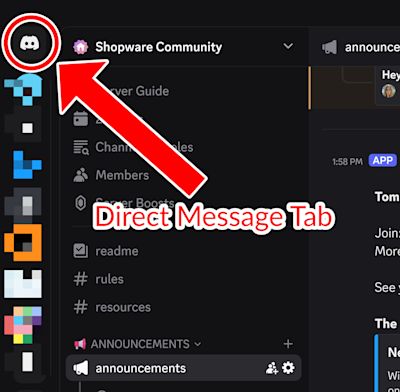
Direct messages are sent (mostly) independently from the server. That means, direct messages appear in a dedicated area in the sidebar, with no relation to the server(s) you are member of.
In your privacy settings, you can turn on the option to only receive direct messages from people you share at least one server with, to avoid possible spam from random users of the Discord platform.
New messages appear as Message Request. You can also decide who can message you, for example only members from servers you are in. More on that here: Blocking & Privacy Settings
Channels overview
Slack
To see a public channel, you must be member of that channel. That means there can be public channels you do not see at all until you join them via the channel browser.
Discord
You automatically are a member of all channels that you are allowed to see, you can't leave them. You can Follow channels to make them visible in the sidebar though. Either through the channel browser or by just showing all channels on the server by default.
It is also possible to mute channels or categories, and you can adjust the notification setting for each server, category or channel.
There are also private channels in Discord, that have no viewing rights for general members, but only for vertain roles or members, similar to slack. Private channels can't be created by members though, that is a deliberate restriction of the Shopware Community Discord.
More on text channels here: Text Channels
Forum channels & tags
Slack
This is a Discord feature that has no equivalent in Slack.
Discord
Forum channels are special channels wherein each new message has a title and body text. These messages then behave like in a web based forum. Comments on these messages are shown as a forum thread.
More on navigating forum channels: How to Search for a Forum Post
Channel structure
Because Discord has forum channels, a lot of topics that were seperate channels in Slack can now be combined into one channel in Discord.
We also changed the channel structure a bit in general, and will continue to do so in the future based on feedback from the community.
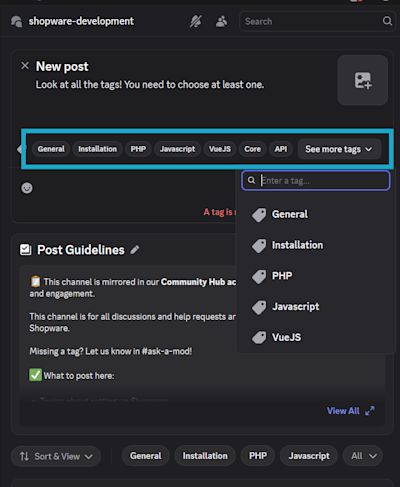
A rule of thumb: All channels you do not find in Discord are now a tag in the channel #shopware-development. If you are not sure which one to use, tag your post with “general”.
Group messages
Slack
You are free to create group messages within a server.
Discord
You can create group chats, but those are limited to a maximum of 10 people and are managed without relations to any server.
That means you do not have to be members of the same server to be in a group message.
More information here: Group Chat and Calls
How the Shopware Community Discord works
Now that you know how Discord works in general, here’s how we use it in the Shopware Community.
Our goal is to make conversations easier to follow and help you quickly find the right place to ask or share something.
Using tags in forum channels
In the #shopware-development forum, tags replace many channels we used to have in Slack, like the popular #shopware6 channel.
As a rule of thumb: If you don’t know which channel is the right one for your question or topic, it is most probably #shopware-development with one of the tags. If no tag fits, use the tag “general”.
Here’s how to use tags effectively:
When posting: Choose the tag that fits your topic best (e.g. admin, api, frontend, general).
When searching in the #shopware-development channel: Filter by tag to quickly find existing discussions.
This makes it much easier for others to find your question later and helps us avoid duplicates.
What do other channels do?
All channels do have a description that explains what those are meant for. Apart from that, there are a few noteworthy channels:
This channel is for chatting when when you are not seeking help Shopware-related help
Good examples are: Ask for an opinion on something, or about some ERP software
Mainly for Dockware topics, but also generally about your dev setups
General announcements like events, news, updates, outages
The whole server will usually get mentioned
Usually only new releases and directly related topics
If you want to get notified, change your channel notification settings
The Shopware Community Hub
Our Shopware Community Hub mirrors selected Discord channels, so you can still read discussions and announcements without logging in.
You’ll also find:
Blog posts and videos from the Shopware ecosystem
Ongoing discussions
Event updates and community highlights
With all that said:
Join Discord now!