A closer look at how version 0.1.0 helps developers trace template relationships and spot upgrade risks without leaving the IDE
Twig overrides are easy to create. The maintenance work usually comes later. A few lines in custom/plugins can replace markup from Shopware core or another extension. Months later, the harder questions are: Which template does this override depend on? Which block is actually upstream? Has that block changed since the customization was written? Does it still exist at all?
We’ve had Twig block versioning in place for a while to help answer the upgrade-related part of that problem. It records the upstream state an override was based on and warns developers when that state changes.
In our latest release of Shopware 6 Toolbox, (available at the Jetbrains Marketplace), we build on that foundation by making Shopware’s Twig inheritance hierarchy easier to navigate and extending versioning inspections to more real-world extension setups, including templates supplied by third-party plugins.
Finding the right template should not require a project-wide search
Consider a plugin that extends the Storefront logo template:

The code is straightforward, but understanding its context may not be. A developer still needs to know things like where the referenced Storefront template is located, and whether another plugin also overrides that view path. The latest plugin release brings more of that context into PhpStorm so that searching through vendor, custom/plugins, and multiple templates with the same relative path is no longer necessary for answering such questions.
Navigate through the complete template hierarchy
Our plugin now provides its own navigation and completion for sw_extends and sw_include, instead of relying on the Symfony plugin’s template integration.
When you navigate from a template reference, PhpStorm can offer all templates that share the same Shopware view path. The explicitly referenced bundle appears first, followed by plugin overrides of that path. This better reflects how Shopware storefront customization works.
A reference to:
is not always relevant only to the file inside the Storefront bundle. Other extensions may contribute templates at the same view path and therefore form part of the inheritance picture a developer needs to understand.
Completion follows the same model. Suggestions include templates from available bundles, including extensions located under custom/plugins.
Navigate from an overridden block to its upstream definition
Navigation also works directly from a Twig block name. To try it out, place the cursor on an overridden block and use PhpStorm’s standard navigation shortcut. The Toolbox follows the template’s sw_extends chain and opens the nearest upstream definition first.
In our test plugin, seen below, navigating from:
opened the matching block inside the Storefront template under vendor/shopware/storefront.
There was no need to open the parent template manually and search for the block name.
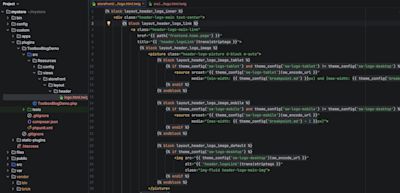
Navigating from the block override opens its exact upstream definition in the Storefront template.
This becomes even more useful when a project plugin extends a template supplied by another plugin rather than extending Shopware core directly.
Faster navigation without repeatedly scanning the project
The release also changes how templates are resolved internally. Templates are indexed by their view path relative to Resources/views, and the template referenced by their sw_extends declaration. That index is then used for completion, template navigation, and inheritance-chain resolution.
The practical effect is that these operations no longer need to scan the project’s Twig files each time they run. In a project with many extensions and templates, that matters both for responsiveness and for keeping resolution behavior consistent across the different features.
Record which upstream state an override was based on
Finding the upstream block answers one question. The next is whether that block is still the same implementation the extension developer originally reviewed. This is where Twig block versioning comes in.
Placing the cursor on an overridden block and selecting Add/Update the Shopware 6 versioning comment leads the Toolbox to add a comment directly above the override:
The hash records the contents of the upstream block at the time the override was created or last reviewed. The version identifies the Shopware or extension release that supplied that upstream block.
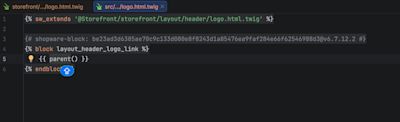
The versioning comment records the upstream block state and the version it belongs to.
This gives PhpStorm something concrete to compare after Shopware or an extension is updated. The relationship is stored next to the customization instead of depending on someone remembering when the override was last checked.
See when an upstream block changes
When a Shopware update modifies layout_header_logo_link, the custom override may still render and even look correct during a quick check. But it could now omit updated markup, behavior, accessibility improvements, or structural changes introduced upstream. Without additional tooling, developers need to compare overridden blocks manually.
With a versioning comment in place, the Toolbox compares the recorded hash with the upstream block currently installed in the project.
In the example below, we temporarily changed the Storefront implementation. PhpStorm immediately highlighted the override and reported:
The upstream block has changed. Please check that your override is still correct.
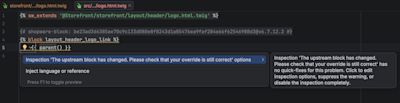
PhpStorm highlights an override after its upstream block changes.
The inspection does not try to rewrite the customization automatically. The developer still needs to review the change and test the resulting storefront. What it does is identify exactly where an assumption encoded in the override is no longer valid.
For Shopware core templates, the Toolbox can also show a diff of the upstream changes. Historical diffs remain limited to Shopware core templates.
Try it out, and stay tuned
Our release notes describe other changes that come with the latest plugin version. More enhancements are on the way, so please follow development in the GitHub repository and share your ideas with us via issues in the repository backlog. When sharing feedback, include:
your Shopware and PhpStorm versions;
the workflow you were completing;
the step that still required the most manual work;
the next recurring task that IDE support could improve.
That helps us understand which development and maintenance workflows the Toolbox should address next.