In our last blog post about the Shopware CLI we introduced our new install wizard, which simplifies creating and setting up Shopware projects. This post focuses on how the CLI now supports the daily development loop: to help developers get started with Shopware faster, spend less time switching between tools, and devote more time to creating and building. Starting a local environment, running watchers, checking logs, accessing database and mail tools, and managing common tasks is now possible from one place.
We’ve expanded Shopware CLI with a new, fully integrated Docker-based development environment. The new project dev command and experience bring environment management into an interactive, Docker-powered terminal user interface (TUI), helping developers start their environment, follow what is happening, and run common actions without juggling multiple terminal commands.
Before: Too many setup options
Previously, developers who wanted to set up Shopware locally had to choose between several different approaches:
Local PHP with all dependencies installed manually
Simplified local setups such as Valet or MAMP
Various Docker-based setups, such as company-specific solutions or Dockware
Devenv
That flexibility was useful, but it also created friction. Newcomers often did not know which option to choose, making onboarding confusing. Because these setups differ in small but important ways, it is also harder for us to optimize every variant for the best possible Shopware development experience.
This is why we want to provide one clear golden path for local development. For the new Shopware CLI development workflow, that path is built around Docker. You can still opt out and use your existing local setup, but this new experience simplifies onboarding and enables better scalability.
Why Docker
Containerization has become the de facto industry standard for running and distributing applications. Docker’s broad adoption since its introduction in 2013 has allowed developers to rely on a consistent environment regardless of their local setup. Major platform vendors such as Microsoft and Apple continue to invest in better Docker support on Windows and macOS.
Shopware CLI now includes several checks to guide users in adjusting their Docker setup on macOS and Windows to further improve performance.
New project creation defaults to Docker
With this change, Docker becomes the default for bootstrapping a new Shopware installation using the CLI. You can still opt out and use your existing setup, but this new default simplifies onboarding and enables better scalability.
How the new local developer environment experience works
The flow from zero to a running environment looks like this:
project create handles the bootstrap: the interactive version picker, pre-flight checks, deployment and CI/CD template generation, and a success screen with your next steps. If you haven't seen the new install wizard yet, check out our previous post.
project dev picks up right where the install wizard leaves off. It takes your freshly created or existing project and gives you a single terminal window where you can see your environment, read logs, start watchers, and run common commands.
To achieve this, the CLI generates a compose.yaml for a Docker Stack, adapts it based on project requirements, and starts the containers.
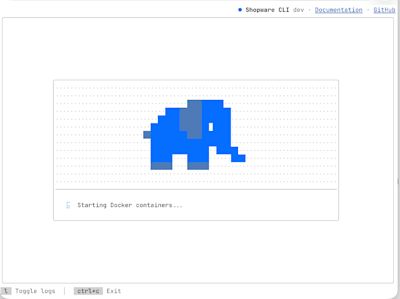
Starting containers
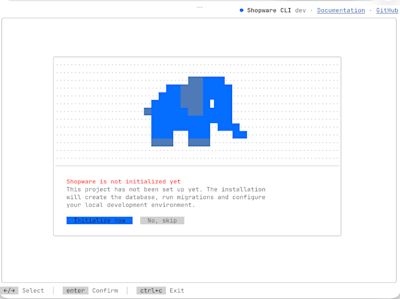
After the Docker environment has started, the CLI checks whether the Shopware project has already been initialised. If not, the CLI guides the user through the initialisation process, which includes selecting the default language and the default currency, and creating the Admin user account and password.
The Overview tab: your local environment at a glance
Once the project is initialised, the user arrives at the “Overview” tab in their terminal:
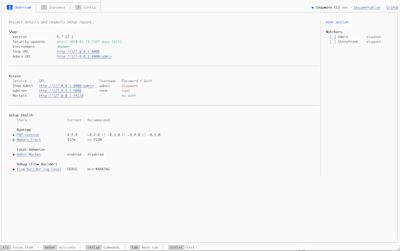
Deriving inspiration from FroshTools, the Overview dashboard gives developers important details about their local environment:
the Shop and Administration URLs
Admin credentials
available services such as Adminer and Mailpit
watcher status for Administration and Storefront
setup health information about PHP version, memory limit, security updates, local behavior, and debug settings
From here, developers can quickly see whether the environment is ready, spot configuration issues, start or stop watchers, and jump into the tools they need without searching through multiple terminals or config files.
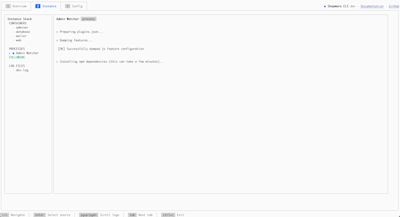
The Instance tab: see what’s happening inside your environment
The Instance tab enables developers to inspect the running environment in more detail. It brings active containers, watcher processes, and log files together in one place. Developers can switch between sources in the sidebar and follow live output directly in the TUI, making it easier to spot errors or understand what is happening in the background.
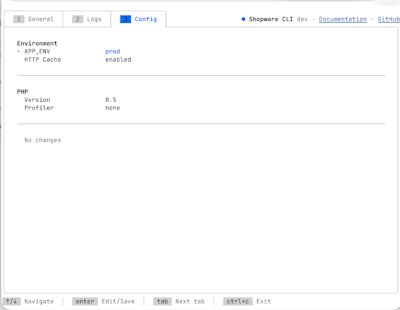
The Config tab: Change local settings without breaking your flow
The Config tab lets developers tune their local environment directly from the TUI. Common settings such as APP_ENV, HTTP cache, PHP version, and PHP profiler are available in one place, so that making changes becomes simple. No more digging through config files or restarting the setup process from scratch!
This means faster context switching: use dev, prod, or test when needed, choose the right PHP version for the project, and enable tools such as xdebug, Blackfire, Tideways, pcov, or spx when debugging or profiling work calls for it.
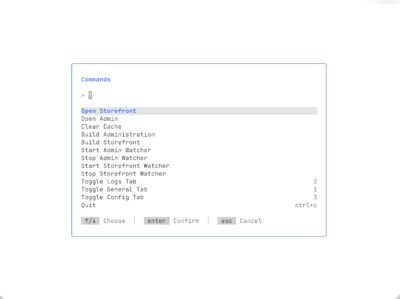
Running common actions quickly
project dev includes a command palette for the actions developers reach for most often. Open it with Ctrl + P to jump to the Storefront or Administration, clear the cache, build the Administration or Storefront, or start and stop watchers.
The action runs directly in the TUI and shows live output, so developers stay in context while the CLI does the work.
Scriptable, not just interactive
The TUI is designed for day-to-day development, but the workflow is not limited to an interactive dashboard. Actions available in the TUI can also be run directly from the command line, which makes them useful for scripts, CI workflows, or AI agents.
Many other commands are available.
Running bin/console from your host
Typical Docker environments require developers to open a separate shell inside the container to run commands. This often means using ash or sh inside the container, without your own terminal styling, shell aliases, or tools.
Typical Docker environments require developers to open a separate shell inside the container to run commands. This often means using ash or sh inside the container, without your own terminal styling, shell aliases, or tools.
To avoid this, we have added a console proxy to the CLI. You can now run Shopware console commands directly from your host shell:
shopware-cli project console plugin:list
When using the Docker executor, Shopware CLI wraps the container execution for you. The command runs inside the web container, while you stay in your own host shell with your usual terminal styling, aliases, and tools. Shell completions are supported as well, including auto-completion for Symfony commands.
Typing shopware-cli project console before every Shopware console command can still get repetitive. That’s why we’re introducing swx, a short alias for shopware-cli project console. For example, clearing the cache becomes as simple as running swx cache:clear.
Help us shape MVP.next
This is just the first version of the new local development experience in Shopware CLI, and there’s much more we want to implement: deeper configuration guidance, better performance hints, more ways to manage extensions and upgrades, and tighter support for the workflows developers use every day.
To make that next step useful, we need your feedback. What works well already? What still gets in your way? What is missing for daily development?
Please share your feedback in this GitHub issue: New Development Workflow using Docker + shopware-cli · Issue #1009 · shopware/shopware-cli
Conclusion
The new project dev experience is about making local Shopware development feel simpler, more consistent, and easier to manage day to day. By bringing the environment, logs, configuration, common actions, and console commands into one CLI-driven workflow, developers can spend less time juggling tools and more time creating value.
SCD 2026 – boost your dev pipeline
Want to see it in action? Watch Soner's SCD 2026 talk for an introduction to the new development experience. Please note: the session was recorded using an earlier version of the Shopware CLI, so some details may differ from the current implementation.